

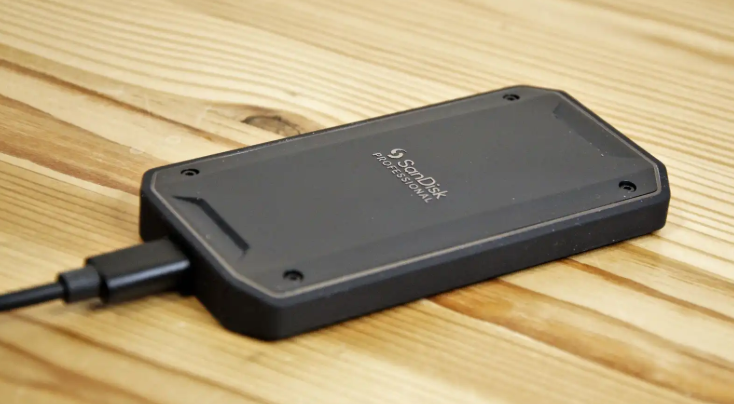
Upgrading your storage with the right external ssd drive can greatly improve your computer’s speed, performance, and reliability. Unlike traditional hard drives, SSDs are faster, more durable, and easier to carry, making them a popular choice for both professionals and everyday users. Choosing the right SSD can be tricky. This guide explains what matters most so you can get the best performance.
What is an External SSD?
An external ssd drive is a portable storage device you can connect to your computer using USB, Thunderbolt, or similar ports. Unlike traditional hard drives that have spinning disks, SSDs use flash memory, which makes them faster, more durable, and quieter. They’re great for backing up files, moving large amounts of data quickly, adding extra storage, or running programs directly from the drive without installing them inside your computer.
Benefits of Using an External SSD
External SSDs provide several benefits for laptop users:
- Faster Data Transfer – External SSDs are much faster than traditional hard drives, up to 25-100 times faster or more. A typical HDD can transfer data at speeds of up to about 250 MB/s, but most consumer 7200 RPM HDDs typically run between 30–150 MB/s, depending on factors such as rotation speed and interface. Modern external SSDs with USB4 can reach speeds up to 4000 MB/s. This higher speed lets you copy large files and install programs much faster, which is great for gamers and media professionals.
- Better Laptop Performance – Storing big files or running programs from an external ssd drive frees up space on your laptop’s internal drive. This prevents slowdowns and keeps your system running smoothly, especially when working on large projects or heavy applications.
- Portability and Convenience – External SSDs are small and lightweight, making them easy to carry in a bag, pocket, or jacket. They’re perfect for students, professionals, or photographers who need quick access to files on the go
- Reliability and Durability – SSDs have no moving parts, so they’re tougher than HDDs. They can withstand minor drops, shocks, and vibrations, making them ideal for people who travel or work in different locations.
Key Specifications to Consider for an External SSD
- Storage Capacity – Choose the size based on your needs:
- 250–500GB for basic file storage (documents, photos).
- 500GB–1TB for media-heavy users (videos, music, photo editing).
- 1TB or more for professionals (video editing, gaming, large projects).
- Interface and Speed – The type of connection determines how fast data can move. USB 3.2 Gen2 is ideal for most users, providing speeds suitable for everyday tasks, while Thunderbolt 3 is much faster, making it perfect for transferring large files quickly and handling data-intensive tasks efficiently.
- Durability – Look for rugged, shock-resistant, or waterproof designs if you travel often.
- Power Source – Most external SSDs get power through the data cable, but larger drives may need an extra power source, so check before use.
- Security Features – Some drives include hardware encryption to protect sensitive files.
- Form Factor and Portability – Smaller, lightweight drives are easier to carry and convenient for mobile use.
Installation and Usage Tips for an External SSD
Connect the Drive
Plug your external SSD drive into your laptop using the provided USB or Thunderbolt cable.
Format the SSD
Formatting makes the drive ready for your computer to store and access data. Which format to choose:
- For both Windows and Mac: Use exFAT so the drive works on both systems.
- Windows only: Use NTFS for full compatibility and features like file permissions.
- Mac only: Use APFS or HFS+ for the best performance with Mac apps.
Formatting usually erases everything on the drive. Make sure it’s empty or back up any important files before formatting.
Partition the Drive (Optional)
Partitioning lets you divide your SSD into separate sections. For example, you could have one partition for work files, one for personal files, and another for media. This helps with organization and can make backups or file management easier. You can partition using built-in tools like Disk Management on Windows or Disk Utility on macOS.
Ready to Use
Once connected, formatted, and partitioned (if desired), your SSD is ready. You can use it to:
- Store and transfer files quickly.
- Run programs directly from the SSD, freeing up internal storage.
- Back up important data safely.
Following these steps ensures your external ssd drive works efficiently, lasts longer, and provides reliable high-speed storage for your laptop.
See also: OPPO Find X9 5G India Launch – Premium Design Meets Cutting-Edge Tech
External SSD vs HDD: Which Should You Choose?
When deciding between an external ssd drive and an external Hard Disk Drive, it’s helpful to compare them based on speed, durability, portability, and cost. Here’s a simple breakdown:
Speed
SSD: Extremely fast – opens large files, launches programs, and loads games almost instantly.
HDD: Much slower – moving large files takes longer.
Durability
SSD: No moving parts means it can survive drops and bumps.
HDD: Has spinning disks, making it more prone to damage.
Noise
SSD: Completely silent.
HDD: Produces noticeable spinning and clicking sounds.
Portability
SSD: Small and lightweight, easy to carry in a bag or pocket.
HDD: Larger and heavier, less convenient to carry.
Power Use
SSD: Uses less energy – better for laptops.
HDD: Consumes more power to spin the disks.
Capacity
SSD: Can go up to 100TB (expensive).
HDD: HDDs offer up to 36TB of storage and are an affordable solution for bulk data storage.
Cost
SSD: Higher cost per gigabyte, but faster, durable, portable, and energy-efficient.
HDD: Cheaper per gigabyte – ideal for bulk storage.
Data Recovery
SSD: Harder and more expensive to recover data from a failed drive.
HDD: Slower and more fragile, but data recovery is generally easier and cheaper.
When to Choose an External SSD
- You need speed for tasks like video editing, gaming, or running apps directly from the drive.
- You want portability, compact, and lightweight for travel.
- You need durability, which can withstand shocks and drops.
- You want a device that operates quietly.
Recent SSDs are more affordable, making them a good choice for many users.
When to Choose an External HDD
- You need high storage capacity for backups, media libraries, or archives.
- You want a low-cost option that gives you plenty of storage.
- You need long-term storage for files you don’t access often.
The right choice depends on what you need and how much you want to spend. Both SSDs and HDDs have benefits, so choose the one that best fits your usage and budget.
Unlock Your Laptop’s Potential with an External SSD
An external ssd drive can make your laptop work much faster. It transfers data quickly, can open files, run programs, and load games almost instantly. Storing large files or running applications from the SSD also frees up space on your laptop’s internal drive, helping it stay smooth and responsive.
External SSDs are also portable, lightweight, and durable, making them ideal for students, professionals, or anyone who works on the go. They can handle minor drops and shocks while providing reliable, high-speed storage. In short, an external SSD enhances your laptop by making it faster, more efficient, and more convenient for everyday use or demanding tasks.